Windows Server 2012R2
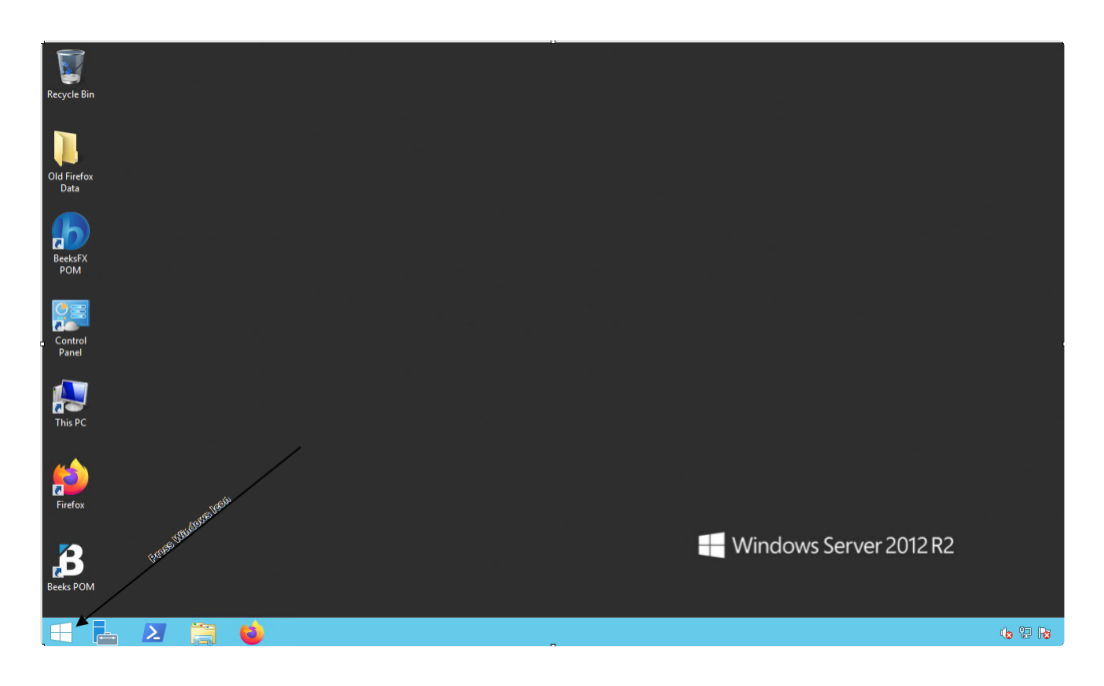
Look for the Windows icon in your VPS taskbar and select it.
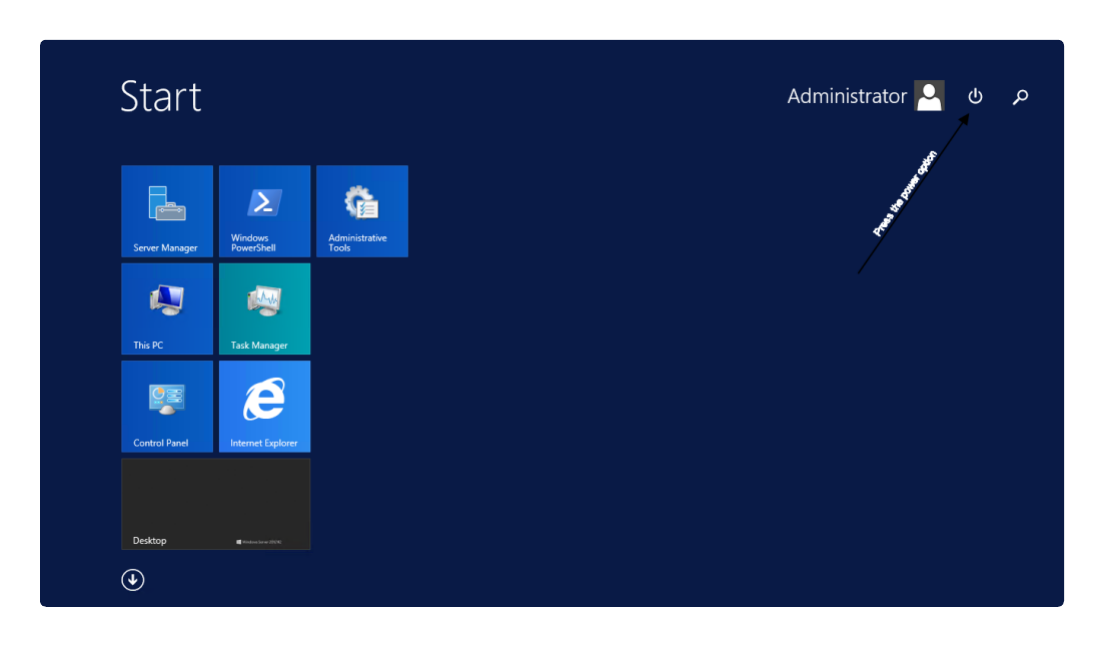
Select the Power option.
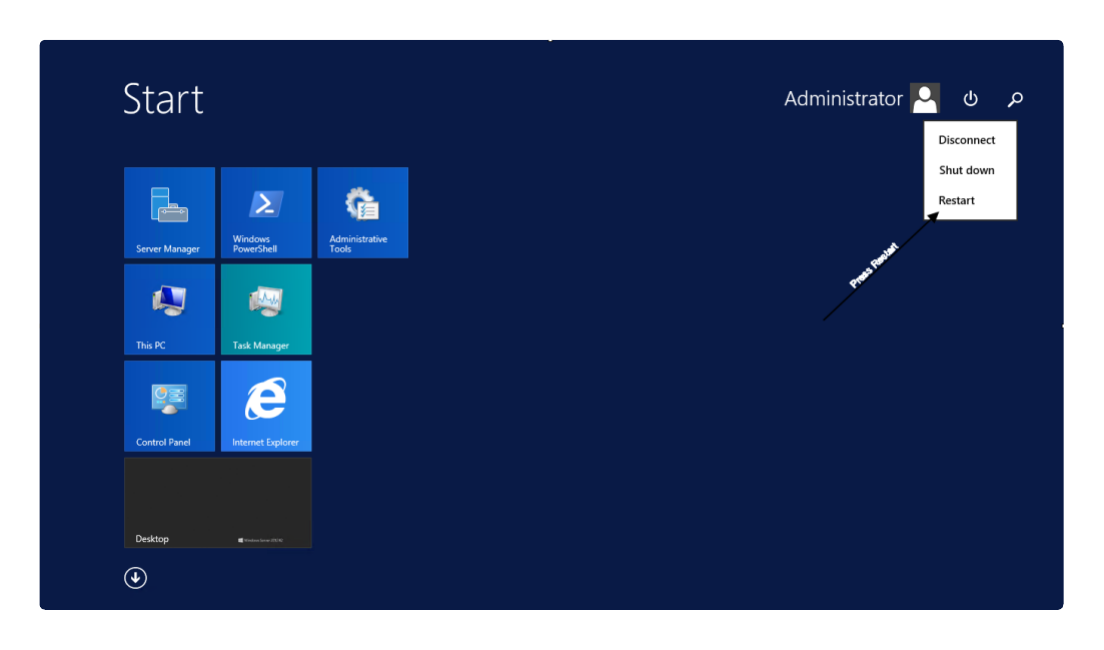
Press Restart button and confirm the restart.
The restart process will take several minutes; if you have not restarted it for a long time, then it will take a longer time to apply the updates.
Windows Server 2016 and Later Versions
Select the Start button.
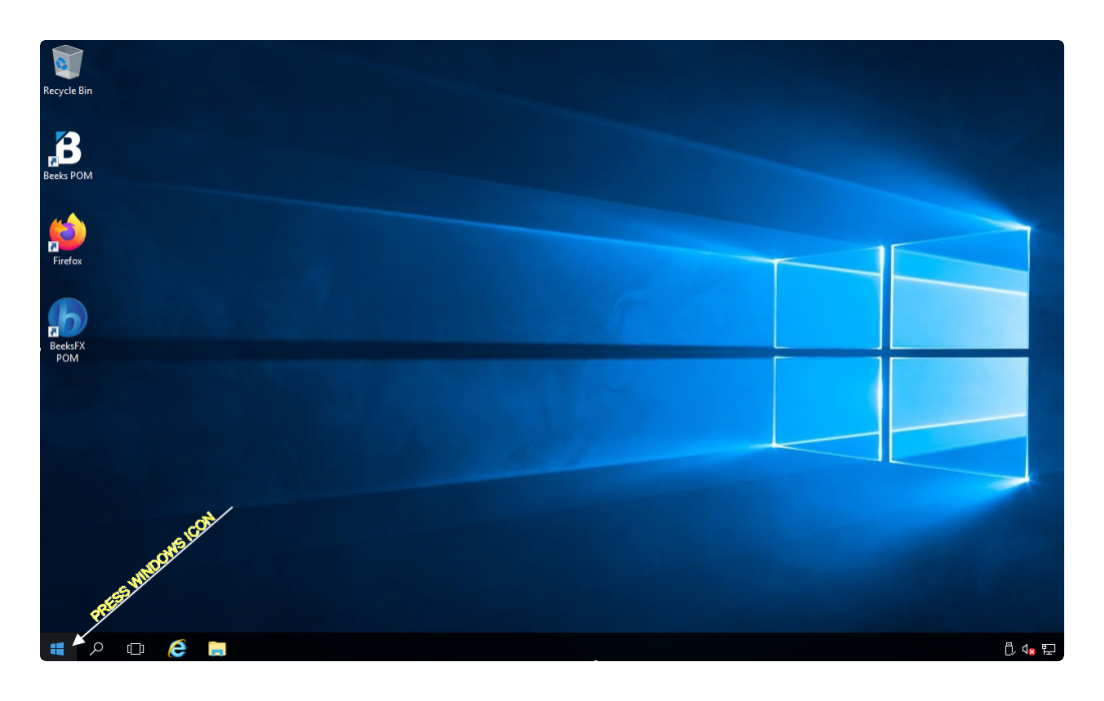
Select the Power option.
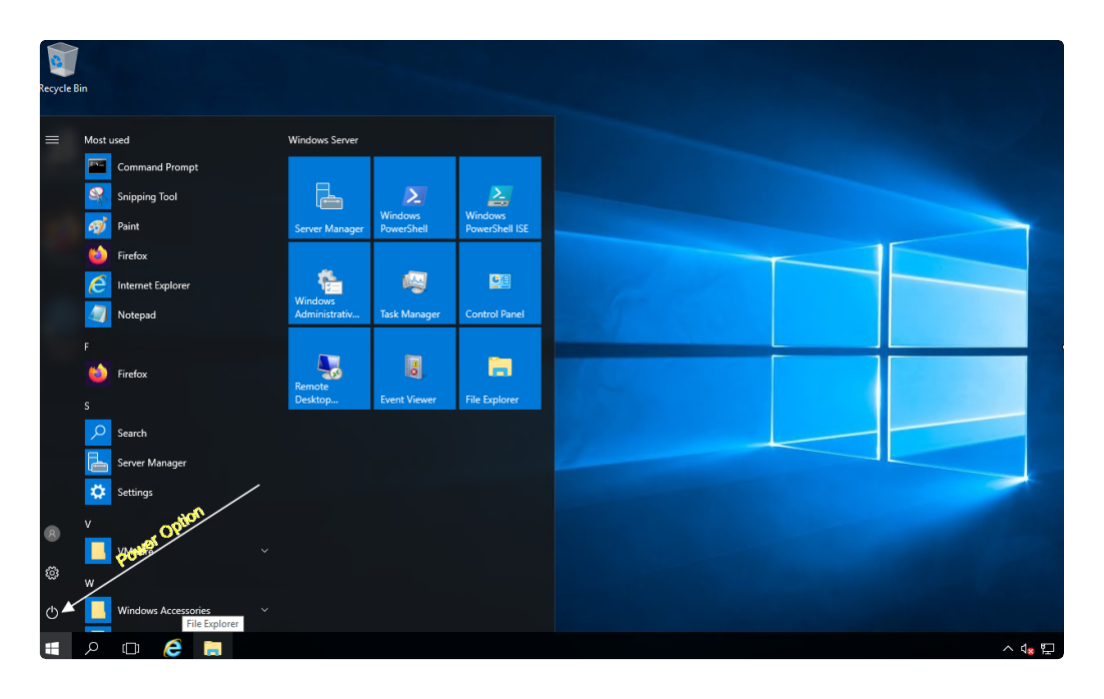
Press the Restart button and confirm.
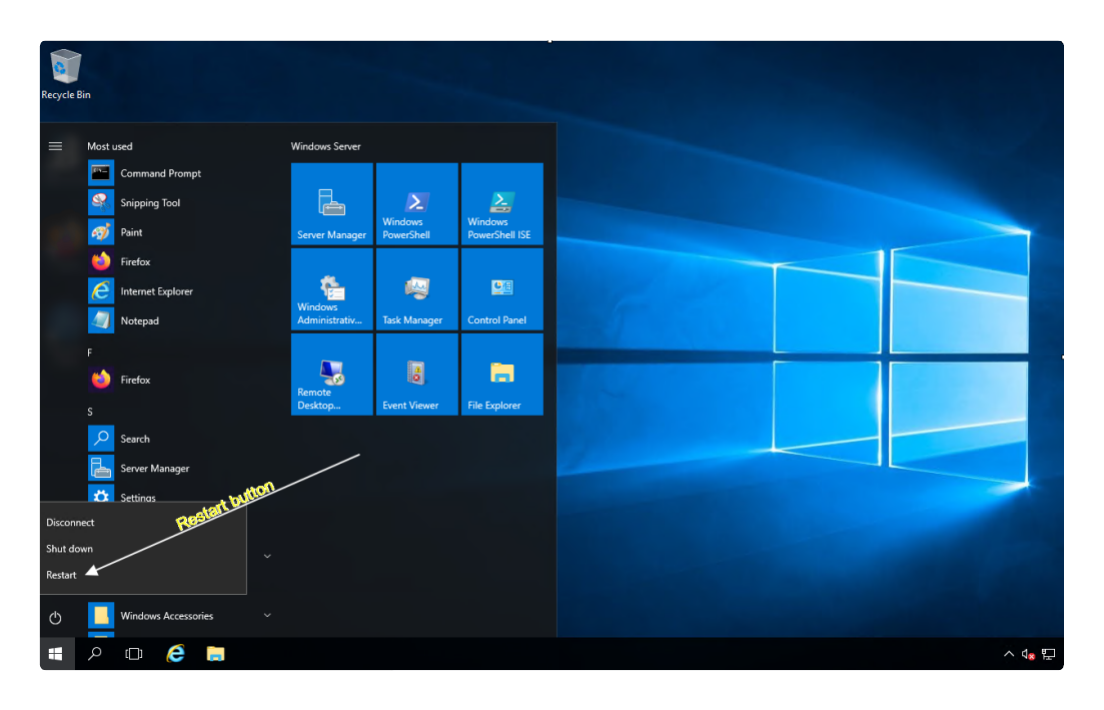
The restart process will take several minutes. If you have not restarted it for a long time, then it will take a longer time to apply the updates.
If your VPS is not working after restart, please contact us at [email protected] or via the livechat on our website www.beeksgroup.com.